
Installation Workflow
Xubuntu 24.04 Dark Edition
Overview
Standard XFCE is efficient but visually conservative. This documentation outlines the exact steps to modernize Xubuntu into a pixel-perfect macOS Big Sur Dark clone. This setup utilizes a hybrid icon system and specific bootloader configurations to ensure consistency from the initial boot sequence to the desktop environment.
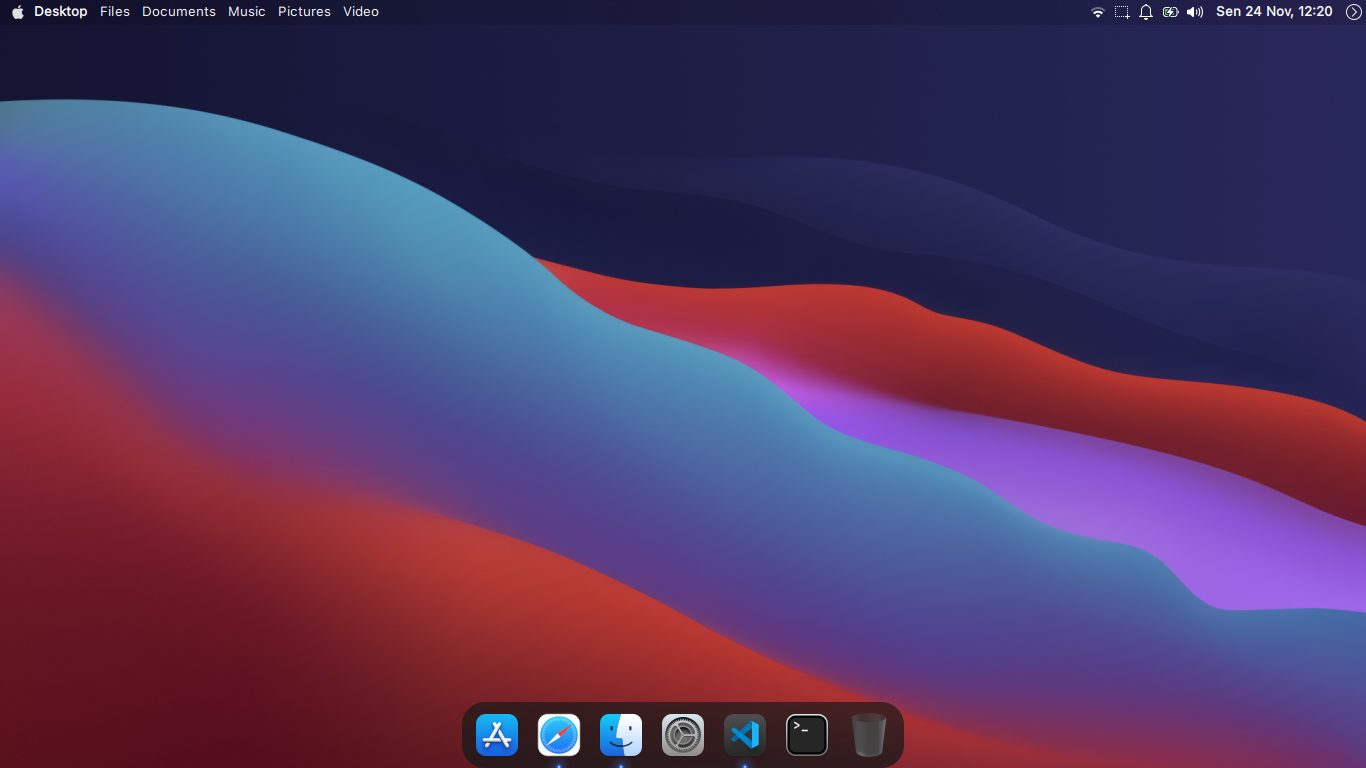
1. Essential Dependencies
Before applying themes, install the necessary build tools. We require sassc for compiling GTK styles and xfce4-appmenu-plugin to enable the Global Menu functionality on the top panel.
2. Typography
The visual identity of macOS relies on the San Francisco font stack. Install the Pro variant for the system UI. For the terminal and IDEs, install Meslo LG to ensure proper glyph rendering and Powerline support.
Configuration: Navigate to Settings > Appearance > Fonts. Set the default font to SF Pro Display (Size 10 or 11). For Terminal preferences, select Meslo LG M.
3. Visual Assets
Install the WhiteSur suite for the GTK interface and Cursors. We use the "Solid" panel variant to prevent transparency artifacts common in the XFCE compositor.
GTK Theme & Cursors
4. Hybrid Icon System
Stock icon themes often lack balance. To achieve the best aesthetic, we create a custom hybrid set. We use WhiteSur as the stable base for panel indicators and inject Mkos Big Sur icons for the application directory.
5. Interface Configuration
Panel & Global Menu
Open Panel Preferences. Move the panel to the top of the screen. Remove the "Window Buttons" item. Add the AppMenu Plugin and position it immediately after the Whisker Menu.
Clock Format: %a %b %d %H:%M
Dock (Plank)
Spotlight Launcher
Configure Super + Space to launch Rofi.
6. Boot & GRUB Customization
A seamless boot experience requires matching GRUB and Plymouth resolution.